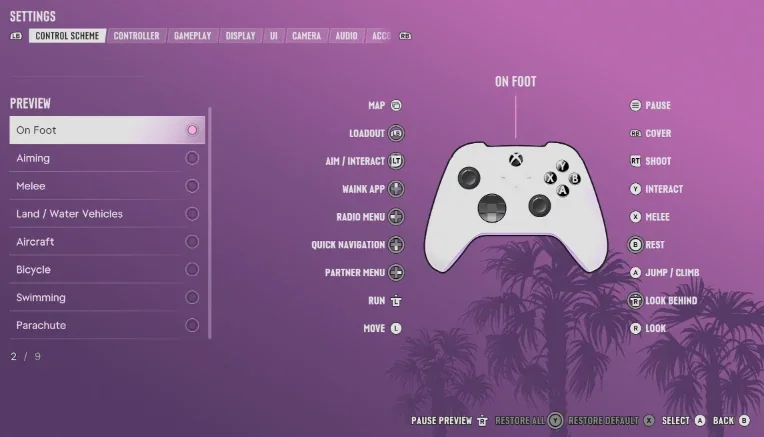
GTA VI has three controller presets on PS5 and Xbox Series X|S: Default, Classic, and Left-Handed. Open Pause → Settings → Control Scheme to select a preset. Cycle through the preview pages to see how the buttons change when you aim, drive, fly, swim, or use a parachute.
The GTA 6 News controls post prompted this guide. The button comparisons below draw on Insider Gaming’s preset breakdown, ViceManual’s PS5 menu captures, and DayOne’s Xbox menu captures.
Pick a preset
- Default: Click the left stick to run. The bottom face button jumps on foot and applies the handbrake when driving.
- Classic: Move running back to the bottom face button and jumping to the left face button. It also changes melee, cycling, and swimming, so preview those pages before you settle in. GamesRadar+ tested the Classic preset.
- Left-Handed: Move or steer with the right stick and look with the left. Aiming and firing swap trigger sides, as do a number of vehicle and swimming inputs.
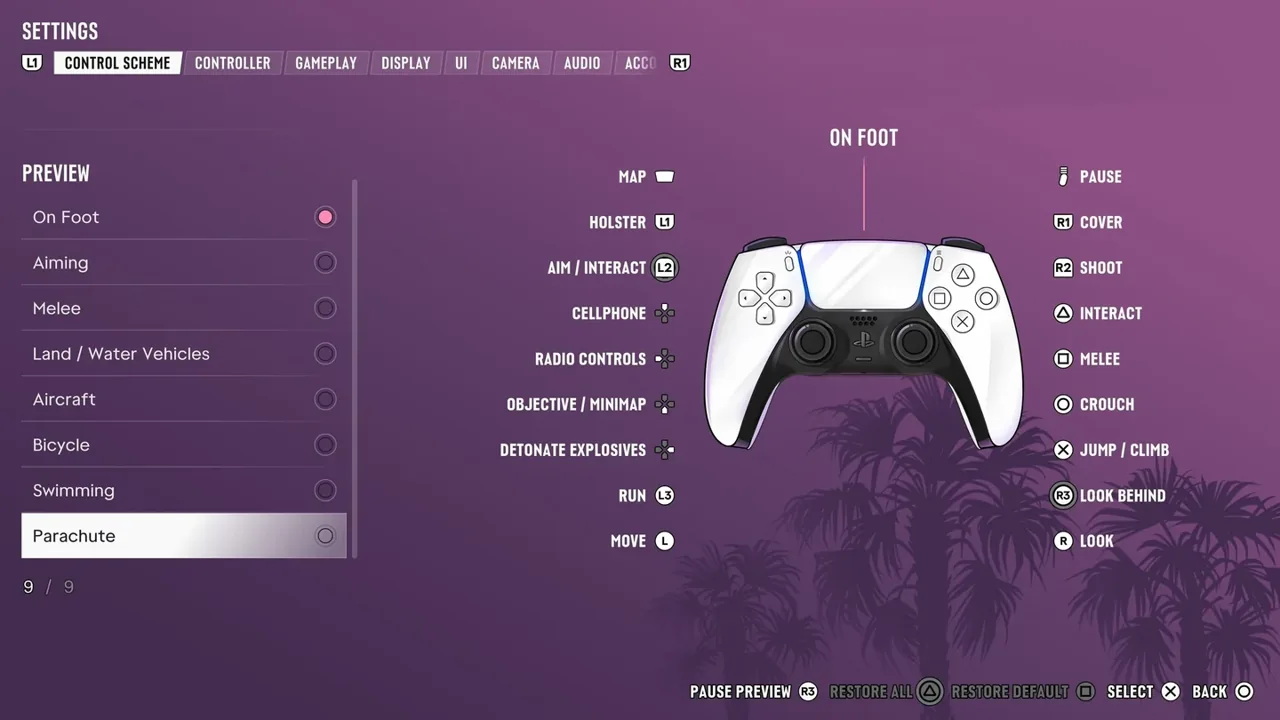
Reading the tables: Paired inputs show PS5 / Xbox. Cross means the PS5 bottom button. X in the Xbox column is its left face button. L3 / LS click and R3 / RS click mean pressing the stick in, separately from tilting it. A dash means the action is absent from that preset’s preview for that situation.
On foot
| Action | Default | Classic | Left-Handed |
|---|---|---|---|
| Move | Left stick | Left stick | Right stick |
| Look | Right stick | Right stick | Left stick |
| Run | L3 / LS click | Cross / A | R3 / RS click |
| Jump or climb | Cross / A | Square / X | Cross / A |
| Crouch | Circle / B | L3 / LS click | Circle / B |
| Melee | Square / X | Circle / B | Square / X |
| Take cover | R1 / RB | R1 / RB | L1 / LB |
| Aim or hold to interact | L2 / LT | L2 / LT | R2 / RT |
| Shoot | R2 / RT | R2 / RT | L2 / LT |
| Holster or hold for loadout | L1 / LB | L1 / LB | R1 / RB |
| Look behind | Hold R3 / RS click | Hold R3 / RS click | Hold L3 / LS click |
Triangle / Y is the main interaction button. Tap D-pad Up for the phone or hold it for WAiNK. Hold D-pad Right for the partner menu. Once partner switching unlocks, follow the Jason and Lucia switching guide for the switch and meet-up shortcuts.
While aiming
| Action | Default | Classic | Left-Handed |
|---|---|---|---|
| Aim | L2 / LT | L2 / LT | R2 / RT |
| Shoot | R2 / RT | R2 / RT | L2 / LT |
| Cover or hold for quick throw | R1 / RB | R1 / RB | L1 / LB |
| Holster or hold for loadout | L1 / LB | L1 / LB | R1 / RB |
| Zoom or show throw path | R3 / RS click | R3 / RS click | L3 / LS click |
| Run | L3 / LS click | Cross / A | R3 / RS click |
| Jump or climb | — | Square / X | — |
| Crouch | Circle / B | L3 / LS click | Circle / B |
| Melee | Square / X | Circle / B | Square / X |
In all three presets, Triangle / Y quick-swaps weapons. D-pad Left switches shoulders, and D-pad Up / Down changes the scope zoom.
Melee
| Action | Default | Classic | Left-Handed |
|---|---|---|---|
| Punch or kick | Square / X | Circle / B | Square / X |
| Block or dodge | Cross / A | Square / X | Cross / A |
| Grapple | R2 / RT | R2 / RT | L2 / LT |
| Hold to lock on or strafe | L2 / LT | L2 / LT | R2 / RT |
Cars and boats
| Action | Default | Classic | Left-Handed |
|---|---|---|---|
| Accelerate | R2 / RT | R2 / RT | L2 / LT |
| Brake or reverse | L2 / LT | L2 / LT | R2 / RT |
| Steer | Left stick | Left stick | Right stick |
| Look | Right stick | Right stick | Left stick |
| Handbrake | Cross / A | Cross / A | Cross / A |
| Exit vehicle | Triangle / Y | Triangle / Y | Triangle / Y |
| Horn or nitrous | L3 / LS click | L3 / LS click | R3 / RS click |
| Headlights or hold to duck | Circle / B | Square / X | Circle / B |
| Melee | Square / X | Circle / B | Square / X |
| Shoot | R1 / RB | R1 / RB | L1 / LB |
| Holster or hold for loadout | L1 / LB | L1 / LB | R1 / RB |
Tap D-pad Left or Right for the corresponding indicator. The Left hold opens the vehicle menu and the Right hold opens the partner menu. See refueling and trunk storage for the other systems that change how you use a car.
Aircraft
| Action | Default | Classic | Left-Handed |
|---|---|---|---|
| Increase throttle | R2 / RT | R2 / RT | L2 / LT |
| Decrease throttle | L2 / LT | L2 / LT | R2 / RT |
| Pitch or roll | Left stick | Left stick | Right stick |
| Look | Right stick | Right stick | Left stick |
| Yaw left | Square / X | Square / X | Square / X |
| Yaw right | Circle / B | Circle / B | Circle / B |
| Landing gear | L3 / LS click | L3 / LS click | R3 / RS click |
| Shoot | R1 / RB | R1 / RB | L1 / LB |
| Exit aircraft | Triangle / Y | Triangle / Y | Triangle / Y |
Bicycle
| Action | Default | Classic | Left-Handed |
|---|---|---|---|
| Pedal | R2 / RT | Cross / A | L2 / LT |
| Sprint | Cross / A | Cross / A | R3 / RS click |
| Brake or reverse | L2 / LT | L2 / LT (rear brake) | R2 / RT |
| Separate front brake | — | R2 / RT | — |
| Steer or lean | Left stick | Left stick | Right stick |
| Bunny hop | Circle / B | Square / X | Circle / B |
| Bell | L3 / LS click | L3 / LS click | Cross / A |
| Dismount | Triangle / Y | Triangle / Y | Triangle / Y |
Swimming
| Action | Default | Classic | Left-Handed |
|---|---|---|---|
| Dive | R1 / RB | R1 / RB | L1 / LB |
| Surface | Cross / A | Square / X | Cross / A |
| Swim faster | L3 / LS click | Cross / A | R3 / RS click |
| Move | Left stick | Left stick | Right stick |
| Look | Right stick | Right stick | Left stick |
| Aim or hold to strafe | L2 / LT | L2 / LT | R2 / RT |
| Melee | Square / X | Circle / B | Square / X |
If you’re starting Island Dreams, the scuba guide shows where to equip the gear and where to find the oxygen meter.
Parachute
| Action | Default | Classic | Left-Handed |
|---|---|---|---|
| Open parachute | Cross / A | Cross / A | Cross / A |
| Detach parachute | Triangle / Y | Triangle / Y | Triangle / Y |
| Steer | Left stick | Left stick | Right stick |
| Brake left | L2 / LT | L2 / LT | R2 / RT |
| Brake right | R2 / RT | R2 / RT | L2 / LT |
| Look | Right stick | Right stick | Left stick |
| Shoot | R1 / RB | R1 / RB | L1 / LB |
Tune sensitivity, deadzones, and aim assist
- Settings → Controller → Aim & Look Sensitivity: Adjust looking and aiming separately. Start with one slider and test on foot. The Aim Response Curve changes how quickly the aim reacts as you move the stick farther.
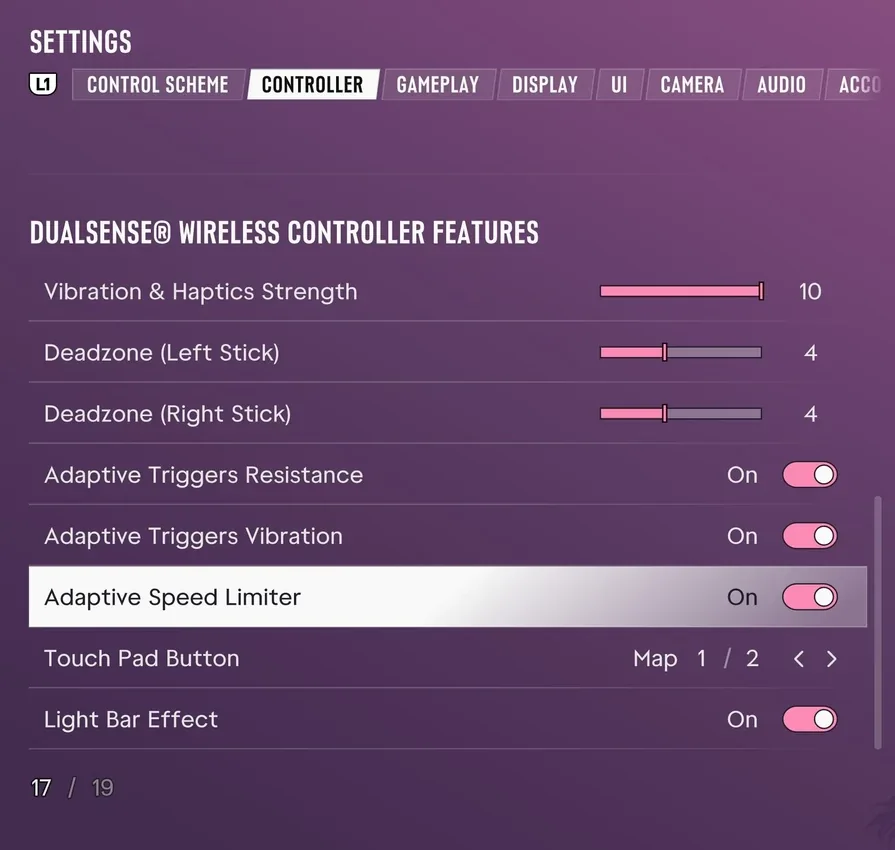
- Settings → Controller → Deadzone: Left and right sticks have separate sliders. If your character moves or the camera turns while the stick is resting, raise the deadzone on that stick one step and retest.
- Settings → Gameplay → Combat: Check the targeting and aim-assist settings here. The menu includes Lock-On, Partial Aim, and Free Aim. Use the Aim Assist Strength slider to adjust how much help you want, then test while actually aiming rather than judging it by the free-look camera.
Consult the in-game Control Scheme preview after changing presets. It’s the quickest way to check a less-used action or confirm what a button does in your current situation.