GTA VI has a dedicated Mute Licensed Music switch in its Audio settings. A screenshot shared with Project VI shows the option on Xbox, and Shacknews independently documented the same path. The on-screen description says that music captions can still appear if captions are enabled.
Where to find it
1. Pause the game and open Settings.
2. Tab over to Audio.
3. Under Setup, set Mute Licensed Music to On.
4. Return to the game and make a short test recording. Listen to the recording itself to check the mix you’re sending to your capture software.
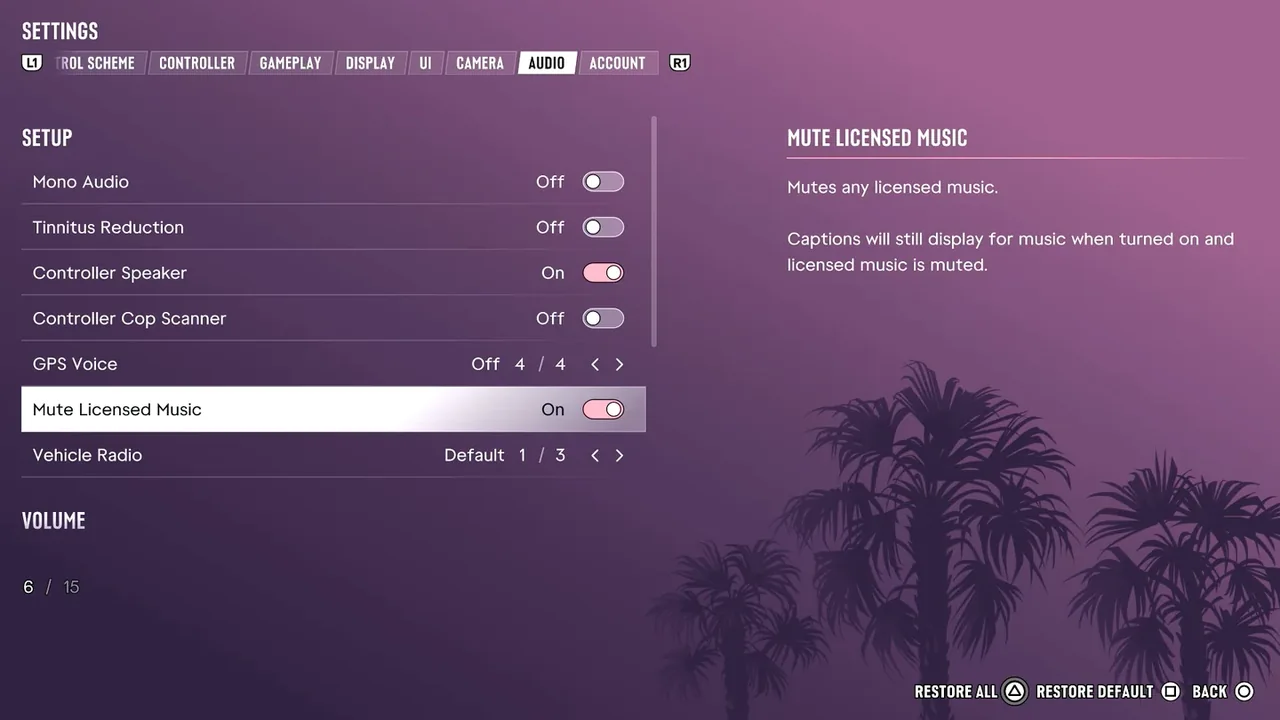
The settings menu lists Vehicle Radio as its own option, and the full audio menu captured by ViceManual shows separate volume sliders. The licensed-music switch is the one to use when you specifically want to filter licensed songs without dropping the entire game audio channel. If you add your own music in your broadcast software, check that input separately.
Twitch and YouTube apply their own rules to what comes through your stream. An in-game filter can reduce what you send from the game. A short test recording is the quickest way to check what your setup is actually capturing. See Twitch’s music guidelines and YouTube’s guidance on copyright in live streams.
If you’re planning a launch broadcast, see Project VI’s Twitch rewards guide or how to use GTA VI’s Photo Studio for creating stills in-game.