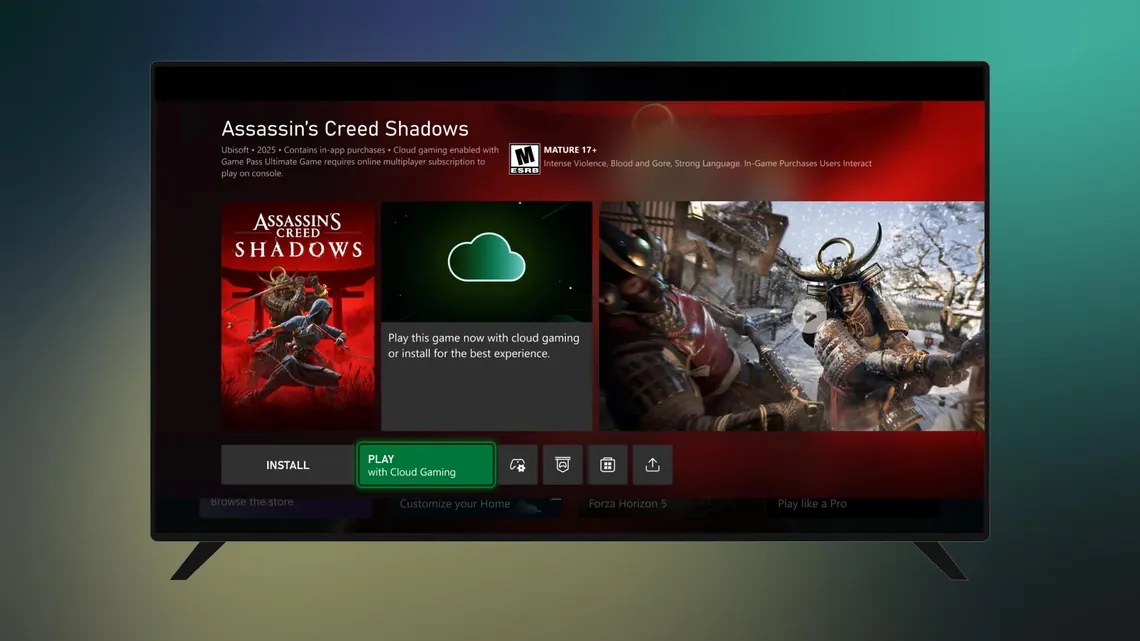
Rockstar Support’s November 18 platform guide confirms Remote Play for GTA VI on PlayStation and Xbox. Remote Play sends the picture and your controller inputs between a device and your home console, where the game actually runs. Set up the console and test the connection before you leave home.
PS5 · PlayStation Portal, phone, or computer
1. On the PS5 that has GTA VI installed, go to Settings → System → Remote Play and turn on Enable Remote Play.
2. To connect while the PS5 is in Rest Mode, open Settings → System → Power Saving → Features Available in Rest Mode. Enable Stay Connected to the Internet and Enable Turning on PS5 from Network.
3. Sign in to your Portal or the PS Remote Play app with the same PlayStation account. Select your PS5, then launch the installed game after its local unlock. Sony recommends a wired connection for the console where possible.
See Sony’s PlayStation Portal setup or PS Remote Play app and requirements. Sony lists eligible games separately for PlayStation Portal cloud streaming. For GTA VI on Portal, the verified route here is Remote Play from your PS5.
Xbox Series X|S · Stream from your console
Enable Remote Features on the Xbox Series X or S with GTA VI installed. Sign in with your Microsoft account on the supported device, connect a compatible controller where needed, and open your console through Xbox Remote Play. Select GTA VI after the game has unlocked on that console. Microsoft lists a 10 Mbps download connection and recommends 5 GHz Wi-Fi or mobile data for compatible devices.
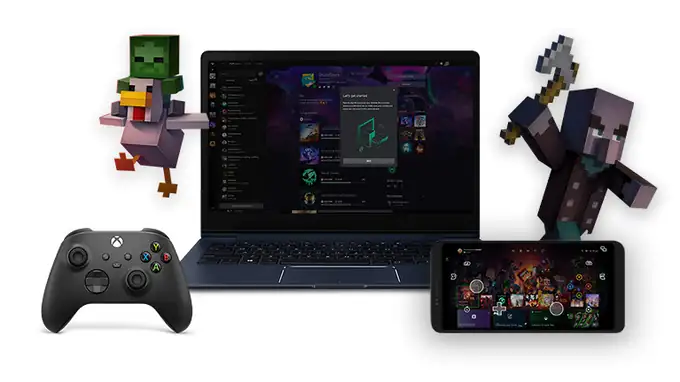
Microsoft’s Remote Play setup illustration uses other games to demonstrate the service.
Xbox Cloud Gaming is a separate route with its own eligibility and launch timing. Microsoft confirms cloud streaming on Xbox One, where GTA VI has no native install. If you do not have a Series console to stream from, use our Xbox One cloud guide. For install and release checks on the host console, see Before You Play.