GTA VI’s Auto-Drive can steer your car along a marked route in Cinematic Mode. Set a destination first. When the on-screen prompt appears, hold Circle on PS5 or B on Xbox to hand over the driving.
Start Auto-Drive
1. Open the map and set a destination. A point of interest on the map only becomes a route once you set it as your destination.
2. Get into a vehicle and start moving. Hold Down on the D-pad and press Options on PS5 or Menu on Xbox to enter Cinematic Mode.
3. If you don’t see Enable Auto Drive immediately, move forward gently. Hold Circle on PS5 or B on Xbox once the prompt appears.
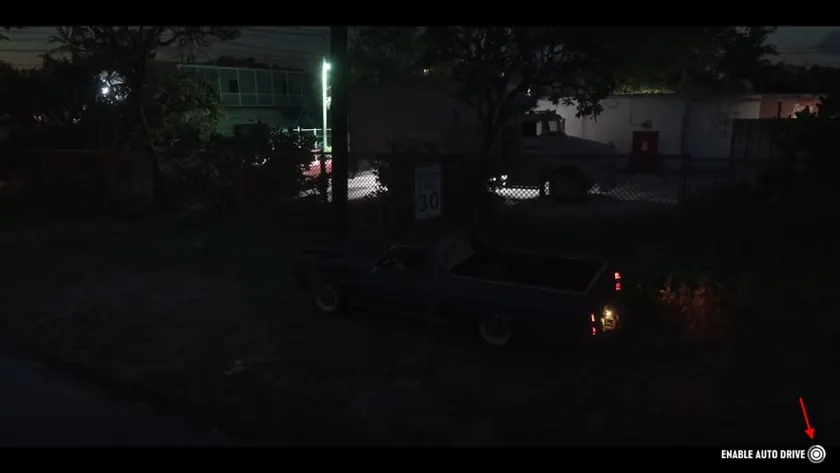
*The prompt appears at the bottom right in Beebom’s gameplay capture. Push Square independently confirms the Cinematic Mode and Circle inputs on PS5.*
If the prompt is missing
Check your waypoint and make sure you’re in Cinematic Mode. Then look under Settings → Gameplay → Auto Drive. Beebom’s capture shows an Unrestricted option with a warning that it can be used in riskier situations. If your current setting limits when Auto-Drive can start, try it during an ordinary free-roam drive or review that restriction before changing the setting.
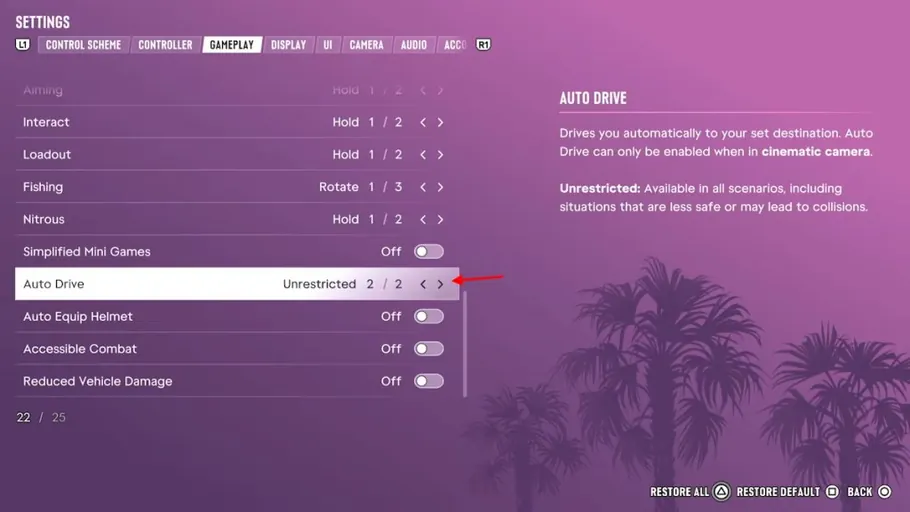
*The Auto Drive setting and its description in Beebom’s capture.*
Beebom found you can adjust speed with the normal brake and accelerator triggers and leave Cinematic Mode by holding Down on the D-pad. Auto-Drive follows the route in real time. To skip the ride itself, see Project VI’s Paradise Taxi and RydeMe guide.