If you bought a boxed copy of GTA VI, the voucher inside is how you claim and download the game. Rockstar confirms the retail box contains a download code. Redeem it while signed into the account you want to own the game, then check your library and make sure the download finishes.
Redeem your code on PS5
1. Sign into the PlayStation account you want to use for GTA VI.
2. Open PlayStation Store, select More, then choose Redeem Code. On the web, you can open your profile menu and select Redeem Code there.
3. Enter the 12-digit voucher code and confirm. Find GTA VI in Game Library and start or resume the download.
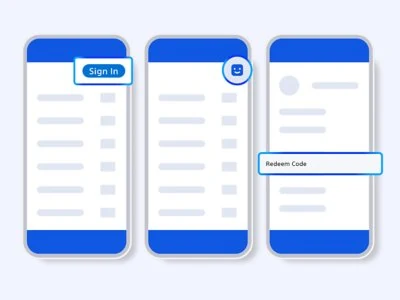
PlayStation vouchers need to match your account’s country or region. Check the box and voucher if you bought an import. If you redeemed the voucher on another account, PlayStation’s GTA VI help page explains how to check ownership and enable Console Sharing and Offline Play on that PS5.
Redeem your code on Xbox Series X|S
1. Sign into the Microsoft account you want to own GTA VI.
2. Press the Xbox button, open Store, then open its side menu and choose Redeem. You can also use Microsoft’s web redemption page.
3. Enter the 25-character code and confirm. Find GTA VI in your owned games and install it if the download hasn’t started.
Xbox’s official redemption guide links to your Microsoft order history so you can check which account redeemed a code.
If the code is missing, damaged or says it was used
- Missing or unreadable. Keep the box, insert and proof of purchase. Contact the retailer that sold it to you. PlayStation specifically directs GTA VI buyers with a missing or damaged voucher to the retailer.
- Already redeemed. Check the order history and library on the account you used. If you have more than one profile on the console, check those too. If the game is absent and the code still shows as used, contact the seller and describe the exact error. Keep the full code private.
- Incorrect or no longer valid. Check the characters and confirm the platform is correct. On PS5, also verify the country or region on the voucher and account. If it still fails, use the official PlayStation or Xbox support instructions and have your receipt handy.
Once the game shows up in your library, check its download status and your store’s unlock time. On PS5, also check the required system software update. For storage and edition details, use our launch checklist and regional rollout tracker.