
GTA VI offers separate assists for fights, vehicle damage, and minigames. You can enable any combination from Settings → Gameplay. If one part of the game is getting in your way, start with the option that changes that part.
Find the gameplay assists
Pause with Options on PS5 or Menu on Xbox, then select Settings → Gameplay. Scroll down toward the bottom of the tab. Rockstar’s settings instructions show how to open the menu on both consoles. Push Square’s hands-on capture shows the two difficulty-related switches near the bottom.
| Setting | What it changes |
|---|---|
| Accessible Combat | Lowers enemy health and reduces the damage you receive. Try it if you keep running out of health during a fight. |
| Reduced Vehicle Damage | Reduces the damage your vehicle takes. Try it if a collision or a chase keeps leaving your vehicle too damaged to continue. |
| Simplified Mini Games | Simplifies some interaction sequences. The game lists exercise and basketball among its examples. |
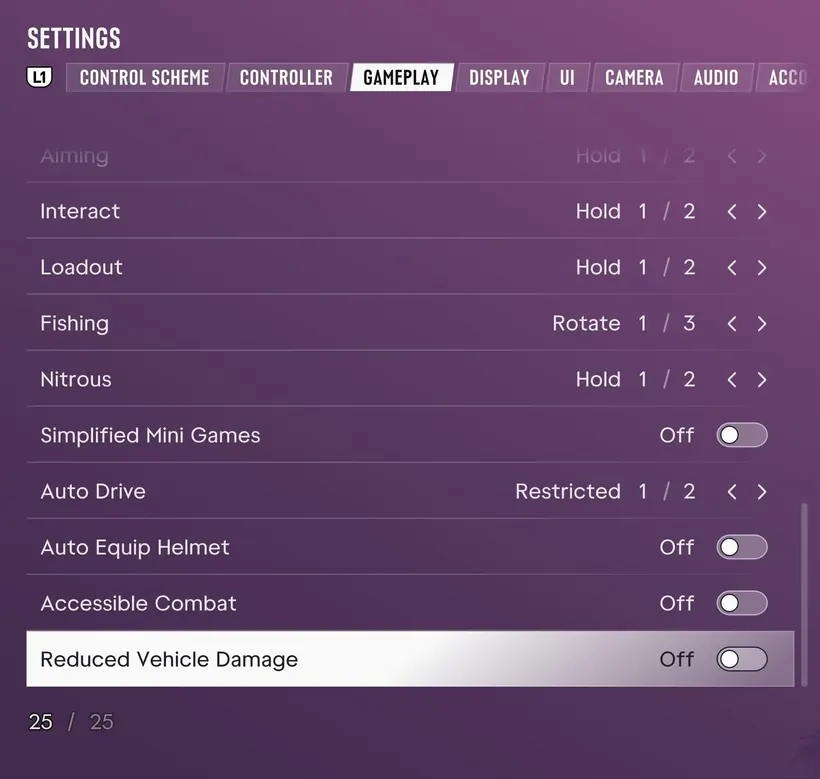
*Gameplay menu captured on PS5 by ViceManual. Screenshot credit. All Things How documents Simplified Mini Games and the related input settings.*
If the issue is a button press or hold
Scroll up to the Accessibility group in Gameplay. Tap Assist can reduce the number of presses needed for repeated input. Aiming lets you choose between holding or pressing the aim input. For trigger feel, look in the separate Controller tab. If you specifically want the aiming reticle to pick up an enemy more easily, see Project VI’s targeting guide.
Project VI’s full accessibility settings guide covers display effects and subtitle readability. For recovery during a fight, see the health and Zombix guide.