GTA VI puts accessibility controls across several tabs in the pause menu. Pause the game → Settings to get started. Rockstar’s November 18 support guide confirms where the main categories live. The specific menu labels and default examples below come from ViceManual’s PS5 launch capture and Can I Play That?’s review of launch footage. Open Rockstar’s settings reference.
Where to find the settings
| If you want to change… | Open this tab | Options to look for |
|---|---|---|
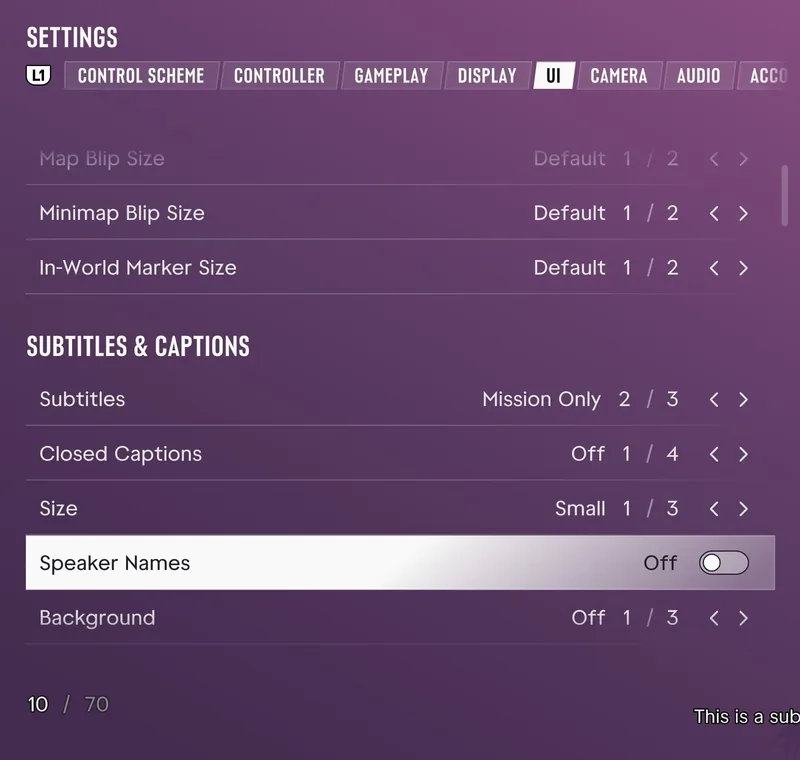
| Dialogue text or sound cues | UI | Subtitles, Closed Captions, Size, Speaker Names, Background |
| Small labels, prompts or map markers | UI | Scaling & Readability and Navigation |
| Repeated presses or long holds | Gameplay | Tap Assist, Hold Assist and Hold Delay |
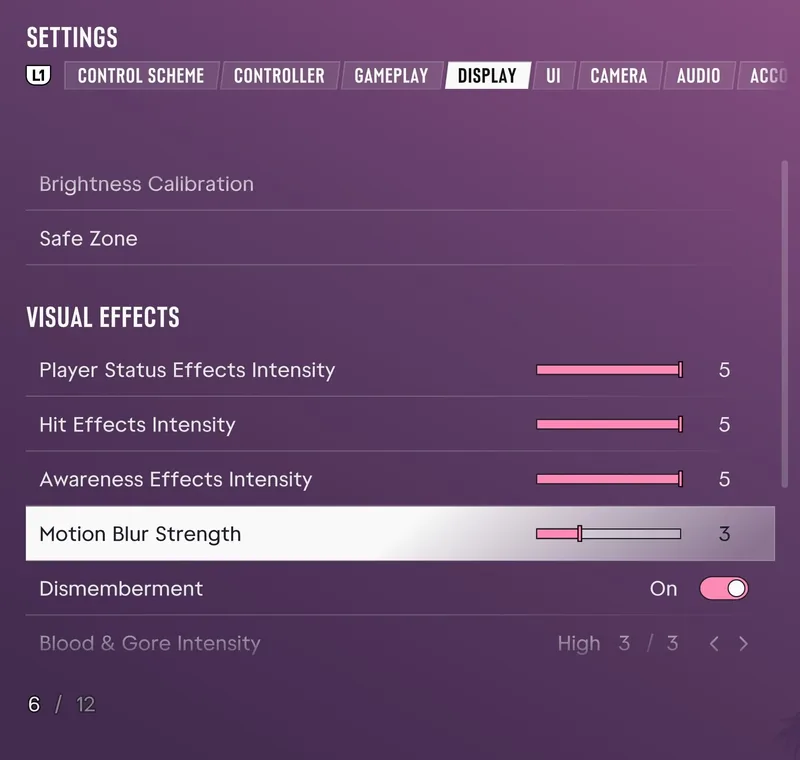
| Blur, screen effects or flashes | Display | Motion Blur Strength, Hit Effects Intensity, Flashbang and Brightness Reduction |
| Controller layout, trigger resistance or feedback | Control Scheme or Controller | Layout presets, sensitivity and supported DualSense options |
Make dialogue easier to follow
In ViceManual’s PS5 capture, subtitles start at Mission Only, with Small text and both the speaker labels and background turned off. In UI → Subtitles & Captions, choose the subtitle coverage you want, then adjust the size and enable the background or speaker names if they help. Closed captions have their own setting for sound cues. Readability changes for the rest of the interface live in a different part of the UI tab.
*Screenshot: ViceManual, captured on PS5. Game imagery © Rockstar Games.*
Reduce repeated inputs and camera effects
Open Gameplay to find tap and hold assists. If you trigger an action by holding a button unintentionally, try Hold Delay. If the action is tiring to hold, check whether it has a press or toggle setting. The Gameplay menu also lists Simplified Mini Games, Accessible Combat, and Reduced Vehicle Damage. For full button layouts, see the Project VI PS5 and Xbox controls guide.
Under Display, motion blur has its own strength setting. Flashbang brightness and other effects are adjusted separately. The options let you dial down specific effects, and their presence alone does not guarantee a scene is free of flashes. The Camera tab also has camera behavior settings. If a change makes play harder, Rockstar points to Restore Default and Restore All at the bottom of the menu.
*Screenshot: ViceManual, captured on PS5. Game imagery © Rockstar Games.*
If you’re setting up to stream, Project VI’s licensed music guide covers the separate audio toggle.
For the effects of the three gameplay toggles, see how to make combat, driving and minigames easier.