Jason and Lucia can take Leonida’s radio stations and on-demand podcasts with them on foot. Rockstar’s November 18 launch overview confirms that the characters use headphones or earbuds connected to their smartphones. Once your character is wearing a pair, hold D-pad Left while on foot to open the Radio Menu on PS5 or Xbox. Rockstar’s launch overview.
How to start listening on foot
1. Get in-game headphones or earbuds. If the option is missing early on, finish the opening tutorial. TalkEsport’s launch guide reports that the accessories become available for purchase after that point. Either style supports on-foot listening.
2. Equip the pair on the character you’re playing. The accessories are part of the game. You can use the same TV speakers or real-world headset you normally play with.
3. Hold Left on the D-pad. Choose a station from the radio menu or select an on-demand podcast. A tap and a hold serve different functions. Insider Gaming’s console control reference and Shacknews’ PS5 controls both list the hold for the on-foot Radio Menu.
4. Tap D-pad Up if you want to open the phone itself. The on-foot Radio Menu has its own shortcut. If you are driving, check the on-screen control hint. In a land vehicle, holding Left may open the Vehicle Menu, depending on your control layout.
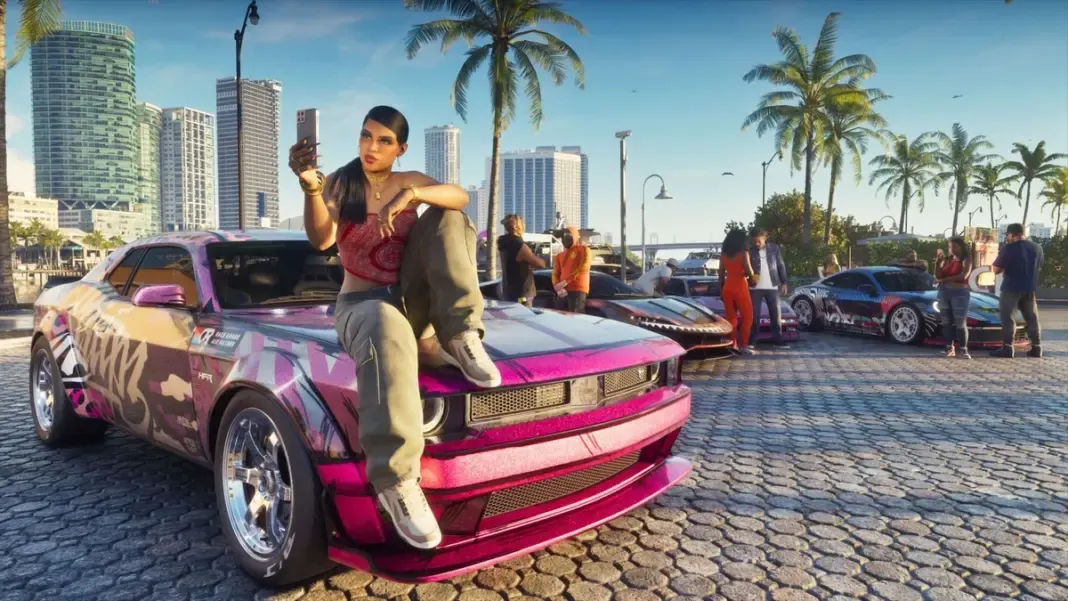
Rockstar Games screenshot via TalkEsport. The image shows Lucia’s phone. The Radio Menu opens during play.
Live radio and on-demand podcasts
Radio stations run their own programming, while podcasts let you choose a show to play when you want. Rockstar confirms that both are available in vehicles and on foot. You can preview stations including Flash FM, Cocoteo FM and Back Country Radio on Rockstar’s official GTA VI music page.
For more button mappings, see our PS5 and Xbox controls guide. If you’re streaming your playthrough, check how to mute licensed music before opening the radio menu.